Troubleshooting
IPTV does not work: check the malfunction step by step
No image, a login error and buffering require various checks. Start with the complaint you see and then test one cause at a time. This way you collect useful information before you enable support.
- no ongoing contract, no automatic renewal
- Pay by bank transfer
- Try for free for 24 hours
Short answer
In short: IPTV troubleshooting
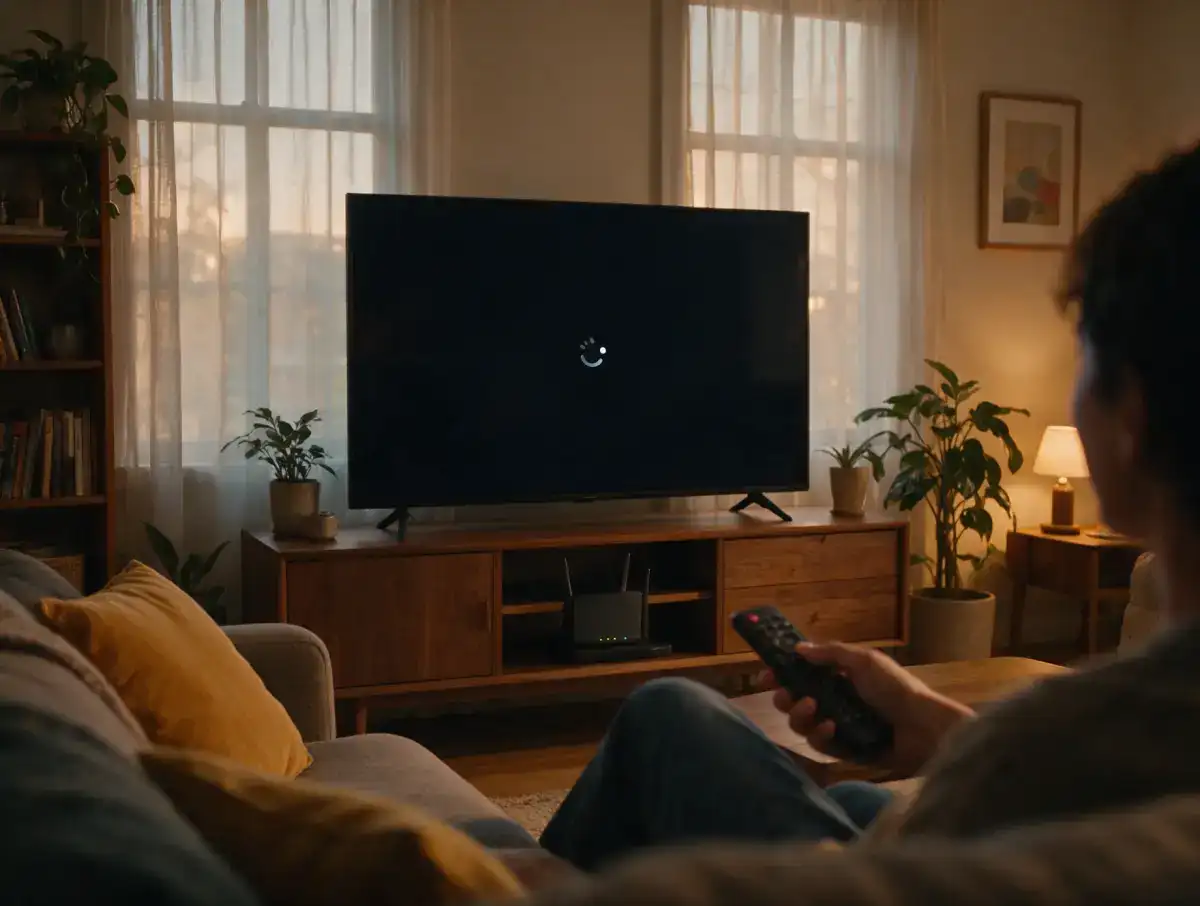
Is your IPTV not working, is the image stuttering or does the screen remain black? In the event of an IPTV failure, the cause is often your internet connection, your app or your login details, but sometimes also the service itself. Test another transmitter and another device, restart your router and check whether your subscription is still running. Below you will go through each cause step by step.
Check first
Is it you or the service?
Before you reinstall anything, you want to know where the problem is. Three short tests rule out most causes.
Test another transmitter and another app
One channel that doesn’t work is different from a service that is down. Zap to two or three other channels; if they work, then it is due to that one stream. None of the channels work, then open another video app on the same device. If that doesn’t load either, then your internet is the cause.
Test another device and do a speed test
Your login details take effect any app with Xtream Codes or M3U. Log in on your phone or laptop; If it does happen there, then the problem is in your TV, box or app. Then do a speed test and pay particular attention to fluctuations: a connection that jumps from 80 to 3 Mbps stutters more than a slow but stable line.
Check your email and the end date of your subscription
An expired subscription is a common reason that IPTV suddenly stops working even though nothing was wrong yesterday. A subscription does not renew automatically: the term expires automatically. Check your email when your last activation arrived and which term you chose: 1, 12 or 24 months. Are you in doubt? Ask by email; we can check if your line is still active.
Login
IPTV does not work: the app does not log in
An error message when logging in usually has one of these three causes. Check them in this order.
Wrong server URL, username or password
Compare field by field with the email you received from us. Many login errors are caused by a space after the username, a capital letter that should have been a lower case letter, or a server URL without a port number.
- Use the full server URL included http:// and gate.
- Choose XtreamCodes if you have a username and password; choose M3U only with the M3U link.
- Some apps automatically capitalize the first character. Correct that.
Subscription expired or not yet activated
Messages such as "account expired" or "invalid credentials" with correct data usually mean that your term has expired. After a new order, you will receive your login details by email after your bank transfer has been received; The transfer itself may take longer depending on your bank. Also check your spam folder.
Too many screens at once
A standard subscription is for one screen at a time. If the app is still open on your TV while you start on your phone, the server will refuse the second connection. Completely close the app on the other device and try again. If you want to watch at the same time, choose one multi-screen subscription for 2, 3 or 4 screens.
Step by step
Quick check in 3 steps
Do this before you reinstall anything. The problem often disappears after this, otherwise you know where it is.
- 01
Test another transmitter and another app
Zap to two or three other channels. If they do work, it is due to that one stream. If nothing works, open another video app on the same device.
- 02
Restart everything and test your connection
Close the app completely, unplug the router and modem from the wall socket for 30 seconds and restart your TV or box. Then do a speed test and pay attention to fluctuations.
- 03
Check your subscription and login details
Check your email for your last activation and duration. Compare server URL, username and password character by character, and exit the app on other devices.
Image and sound
Black screen, transmitter does not load or no image
The app logs in, but you see nothing or only hear sound. These are solutions that often help.
Black screen or channel keeps loading
The charging cycle continues to run on one channel, zap away and back, or choose the same channel in HD instead of 4K. If none of the channels work, close the app completely and restart.
If that doesn’t help, switch stream format in the app settings: from HLS to MPEG-TS or vice versa. Some TVs and boxes have trouble with one of the two.
Sound, no picture
If you hear the broadcast but the image remains black or green, the video decoder of your device cannot handle the stream. Enter the decoder or player to: from hardware to software, or to an external player such as VLC or ExoPlayer. This is a known limitation on older Smart TVs.
TV guide (EPG) remains empty
An empty TV guide is rarely a problem: EPG data is loaded separately from the channels and usually refreshed once a day. Choose in the app settings "Renew EPG" and leave the app open for a few minutes. If the guide remains empty, check that the EPG source is set to Xtream and the time zone is set to Canada, otherwise the times will be incorrect.
Faltering
IPTV stutters, freezes or crashes
Buffering, freezing and an app that just crashes have causes other than login problems. These are interventions that often make a difference.
Cable instead of Wi-Fi, and restart your router
Interference usually comes from the network. Wi-Fi at 2.4 GHz is sensitive to neighbors, microwaves and thick walls; a live stream notices every hiccup. Connect your TV or box with a network cable, or else use the 5 GHz band.
Then unplug the router and modem from the wall socket for 30 seconds. This surprisingly often resolves an IPTV problem that has been going on for days.
App cache and quality down
It lasts zap long or the image stutters, these settings in your app often help:
- Clear cache: Settings > Apps > [your IPTV app] > Clear cache. Login details are usually retained.
- Increase buffer: set "buffer size" in your app one step higher when watching on Wi-Fi.
- Lower quality: choose HD instead of 4K if your connection fluctuates.
More explanation per cause: Solve IPTV buffering.
App crashes: update, clear cache, reinstall
If the app collapses, first check whether there is one update is ready in the app store. Then clear cache. Only if that doesn’t help, delete the app and reinstall it. You will then have to re-enter server URL, username and password; keep your email handy. Step by step per device: installation page.
Per device
Quick fixes per device
Every device has its own weak spot. This often makes the difference per type.
Samsung and LG Smart TV
Apps such as Smart IPTV (SIPTV), Flix IPTV and IBO Player load your playlist via a website based on the MAC address of your TV. If the app no longer works, check whether the playlist is still connected to the correct MAC address and whether the app activation is still valid (check with the app itself). Turn the TV off at the wall socket for once. In the case of persistent stuttering, one IPTV box or Firestick is often the better solution.
Firestick and Fire TV
The Firestick has little RAM. Stop other apps via Settings > Applications > Manage installed applications and clear the cache of your IPTV app there. Restart via Settings > My Fire TV > Restart. Use 5 GHz Wi-Fi, or a commercially available Ethernet adapter; that makes a noticeable difference in live sports.
Android TV box, Formuler and MAG
On an Android TV box or Formuler, clear the cache via Settings > Apps; If the entire box freezes, disconnect the power for a moment. On a MAG box you check whether the link entered corresponds exactly with what is in your email; one wrong character and the box loads nothing. Cheap boxes falter at 4K: then choose Full HD.
iPhone, iPad and Apple TV
Force close the app and reopen it. If you watch on the go on 4G/5G, keep in mind that some mobile networks limit video quality; At home on Wi-Fi the picture is often better. Also update your IPTV app after an iOS update, older versions may crash.
Support
When do you contact support?
Did a quick check and it still doesn’t work? Then it’s time to call on us. With the right information we will help you faster.
You send this along
- Device and app (e.g. Samsung Smart TV, Firestick 4K, iPhone with IPTV Smarters Pro).
- What’s happening: error message, black screen, stuttering or not logging in.
- Which channels, or that no channels work.
- Since when and at what time, and whether you have already tested via cable and on a second device.
- The username of your line (never your password in a public message).
This is how support works at Canadas IPTV
You can reach us via the support team on the site and by email ([email protected]), in English. We check whether your line is active, whether our side knows anything about the channel you mention, and go through your app settings if necessary. Not a customer yet? Test first with the free 24 hour trial, without payment and without automatic renewal.
If a provider no longer works at all
If an IPTV service no longer works for you and others for days, and the provider does not respond, then the problem lies with that provider and not with your equipment. Don’t keep adjusting settings endlessly: contact the provider about the remaining term. Read how to recognize a reliable party Choose IPTV provider.
Frequently asked questions
Frequently asked questions: IPTV troubleshooting
Have another question? Contact our English-language support team and include the details of your device and setup.
Send a questionWhy doesn’t my IPTV work?
Why does my IPTV keep stopping?
Why does IPTV keep crashing?
Is there a problem at the moment?
Why does my IPTV suddenly stop working?
Can I watch on multiple devices at the same time?
Also read
Read more
Solve IPTV buffering
Comprehensive guide to stuttering and buffering: from Wi-Fi and router to buffer settings per app.
View page InstallationInstall IPTV per device
Log in step by step to Smart TV, Firestick, Android box, iPhone and more, with the correct settings.
View page AppsIPTV apps per device
Which app suits your device and works with Xtream Codes and M3U? Compare the options.
View pageStill a glitch? We will help you in English
Send us your device, app and what exactly you see by email, and we will look together to see where things are going wrong. Not a customer yet? First test for 24 hours for free, without payment and without automatic renewal.
No payment required · Try 24 hours
A PRACTICAL CHECKLIST
Give each test a clear outcome
First, check if other apps on the device have internet access. Then try another channel and see if the same error comes back. Note whether you don’t get a picture anywhere, have no sound or only see an empty TV guide.
Then check your subscription status, the received server information and the number of active streams. Temporarily stop other streams if you reach the screen limit. An empty TV guide does not in itself mean that your entire subscription is unusable.
If these checks do not help, please send the time, device, player and exact error message to [email protected]. Describe what tests you have done. Omit passwords and full playlist links from your message.